
A ledger balance is useful only when you can explain how it was reached. If a total cannot be traced to entries and supporting records, copying it into a cleaner page does not resolve the accounting question.
These two general ledger templates support different parts of that work. The account sheet records entries for one account. The reconciliation review compares a closing balance with an appropriate source and records differences for investigation. Both are manual Word layouts. They do not post journal entries, enforce double entry or replace an accounting system.
View the two editable Word downloads
Give each account its own clear identity
Start with the account name and code from the business’s chart of accounts. Similar-sounding accounts can have different purposes, so avoid inventing a new label merely to fit a template. The ledger sheet should connect to the records already used by the business.
Identify the reporting period and opening balance, including whether the balance is debit or credit. A number without its side can create confusion, especially when a reviewer receives only the individual sheet rather than the complete set of accounts.
Use a separate sheet for another account. Combining unrelated balances on one page may save space but makes it harder to understand the sequence of entries. An account reference provides a practical way to connect the sheet with a journal, source document or review file.
If you are learning bookkeeping, work with clearly labeled practice figures. For real records, use the accounting policies and review process that apply to the business. The template is a place to organize entries, not a rule for choosing their treatment.
Record entries with enough detail to trace them
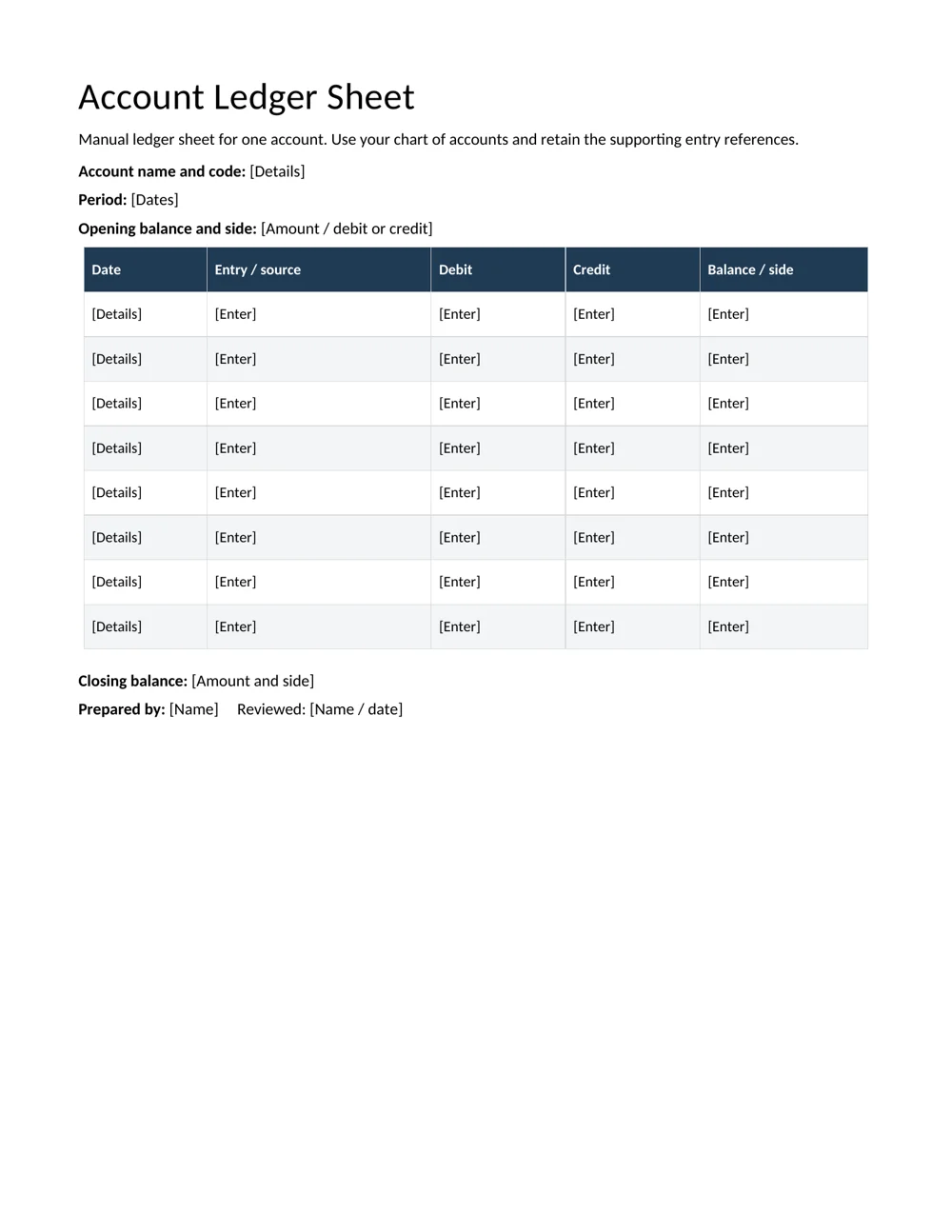
Each row needs a date, entry or source reference, debit amount, credit amount and resulting balance. The description should be specific enough for another person to identify the event without relying on the preparer’s memory.
For example, a reference to an approved supplier invoice is more useful than a note that simply says purchase. Keep the original evidence in the proper record system and use a reference rather than trying to squeeze every detail into the ledger row.
The IRS guidance on recording business transactions describes the relationship between supporting documents, journals and ledgers in a U.S. context. Requirements elsewhere can differ, but the practical need for traceable records remains relevant.
Enter actual reviewed entries rather than using the ledger to invent missing evidence. If a source is absent or an amount is uncertain, make that a review question. A precise-looking row should not conceal an unresolved accounting issue.
Check the running balance with a small example
Take a fictional cash account with an opening debit balance of 1,000 currency units. A reviewed cash receipt entry of 250 increases that debit balance to 1,250. A reviewed cash payment entry of 180 reduces it to 1,070.
The example illustrates movement in that particular account. It does not mean that every debit increases every account or every credit reduces it. The effect depends on the account and the accounting entry being recorded.
In the Word template, the running balance is entered manually. Recalculate later balances whenever you correct or add a row. An arithmetic error near the start can carry through the entire page while the final figure still looks plausible.
Check the opening balance against the prior closing record, then work through each movement in order. A review checklist can help the preparer confirm references, amount sides and calculations before the sheet is passed to the reviewer.
Use reconciliation to investigate, not to force agreement
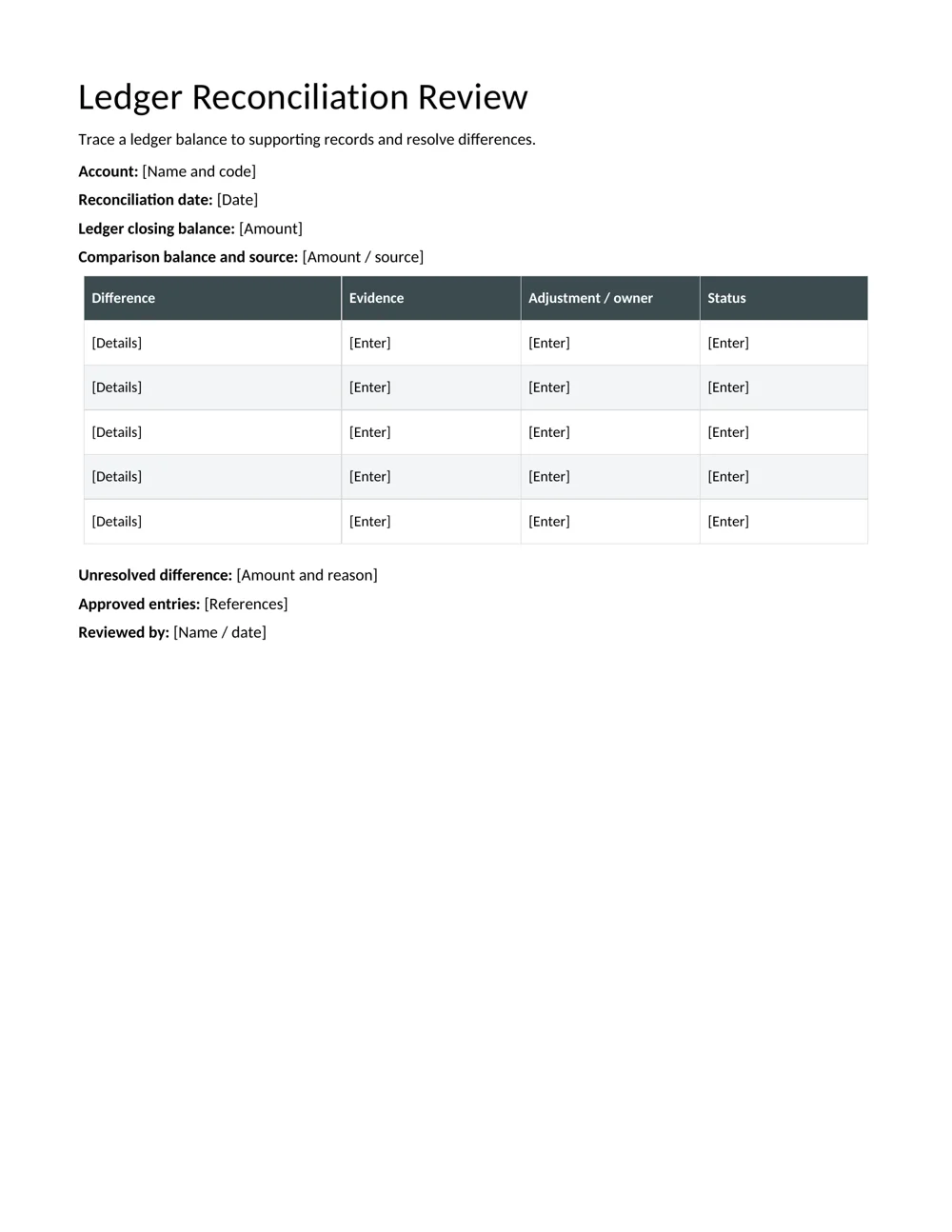
The Ledger Reconciliation Review asks for the ledger closing balance, the comparison balance and its source. Choose a source that is appropriate to the account and the reconciliation purpose. Comparing unrelated totals does not become meaningful because both are called a balance.
Record each difference separately. A timing item, omitted entry, duplicate posting or classification question may require a different response. Explain what evidence supports the difference and who will resolve it.
Do not enter a balancing adjustment solely to make the two figures match. Determine the cause and use the business’s approval process for any correction. A reconciliation should make unresolved items visible rather than erase them.
When an item is still open, record its amount, explanation, owner and next check. The review sheet can then show the difference between a documented timing matter and an unexplained amount that still needs investigation.
Keep corrections connected to their evidence
If an entry is wrong, follow the accounting system’s correction process. Record the relevant correction reference and retain the explanation. Quietly rewriting a previously reviewed number can make it difficult to understand what changed and why.
A difference found during reconciliation may affect more than one account. The Word sheet does not check the completeness of the related double-entry posting. Have the responsible person review the full correction rather than treating the single account page as the entire transaction.
Distinguish the date of the underlying event from the date an adjustment is prepared where the accounting process requires that distinction. Consistent references help a later reviewer follow the sequence without guessing.
Use a daily report for operational context if it helps explain an event. Keep the financial entry supported by the proper accounting evidence, with a link to the operational record where relevant.
Decide when a manual Word ledger is appropriate
A Word ledger can be useful for a small review schedule, a training exercise or a clearly bounded account working paper. It is easy to annotate and print, but it does not provide the controls of a dedicated accounting system.
The files do not validate account codes, prevent duplicate references or automatically update another account. They also do not produce a trial balance or financial statements. If transaction volume or complexity grows, those limitations become more significant.
Avoid maintaining competing records without a clear purpose. If the accounting system is the authoritative ledger, label the Word sheet as the relevant review or presentation schedule and reconcile it to that system. Otherwise a reader may mistake a working copy for the current official record.
Use the file where it adds clarity. A well-designed working paper can make a question easier to review, but the choice of a familiar application should not weaken the business’s record controls.
Finish with a review somebody else can repeat
Check the account identity, period, opening balance, entry references, debit and credit columns and closing calculation. Compare the final figure with the appropriate system report or source used for the review.
For a reconciliation, make sure the differences add up to the stated gap. Check that approved corrections are actually reflected in the relevant records rather than merely described as planned. Keep an unresolved item open until the evidence supports closing it.
Add the preparer’s and reviewer’s names and dates through the business’s normal process. A monthly report can summarize material unresolved issues without reproducing every ledger row.
Retain the issued version and supporting references in the appropriate location. A clear ledger working paper should allow another qualified reviewer to follow the same evidence and understand the same balance, including any remaining uncertainty.
Use continuation pages without losing the account
If one page is not enough, repeat the account name, code and period on the continuation page. Carry forward the verified balance and identify the previous sheet. Otherwise a detached page can look like a separate account or begin with a balance whose source is unclear.
Keep rows in a sequence another reviewer can follow. When the accounting process requires a correction with a separate reference, retain that distinction instead of inserting an unexplained number among earlier entries. Check the page-to-page balance after printing or exporting, especially if a row moved during editing. The final total should reflect the same entries regardless of where Word places the page break.
Download the 2 editable Word resources
Account Ledger Sheet
Manual ledger sheet for one account. Use your chart of accounts and retain the supporting entry references.
Ledger Reconciliation Review
Trace a ledger balance to supporting records and resolve differences.
Frequently asked questions
Does the Word ledger calculate balances?
No. Enter and check every running balance manually, including later rows affected by a correction.
Can I put all accounts on one sheet?
Use a separate account identity and record for each account. The supplied account sheet is intended for one account at a time.
Does a debit always increase an account?
No. The effect depends on the account and entry. Use the accounting treatment and review process appropriate to the records.
What if a reconciliation does not agree?
List and investigate each difference. Do not create an unsupported adjustment just to force the totals to match.
Can this replace accounting software?
It does not provide automated posting, double-entry controls or a complete accounting system. Use it for a suitable manual schedule or review purpose.

Leave a Reply
You must be logged in to post a comment.