
These storyboard templates help you plan a visual sequence before filming, animating or presenting an idea. Choose a six-frame sheet for individual shots or a three-scene layout for larger sketches and production notes. Both downloads are editable Word documents with space for visuals, action, sound and timing.
The drawings do not need to be polished. Their purpose is to show what the audience will see, what changes in each moment and how the sequence supports the intended message.
Jump to the downloadable templates
Choose six frames or three scenes
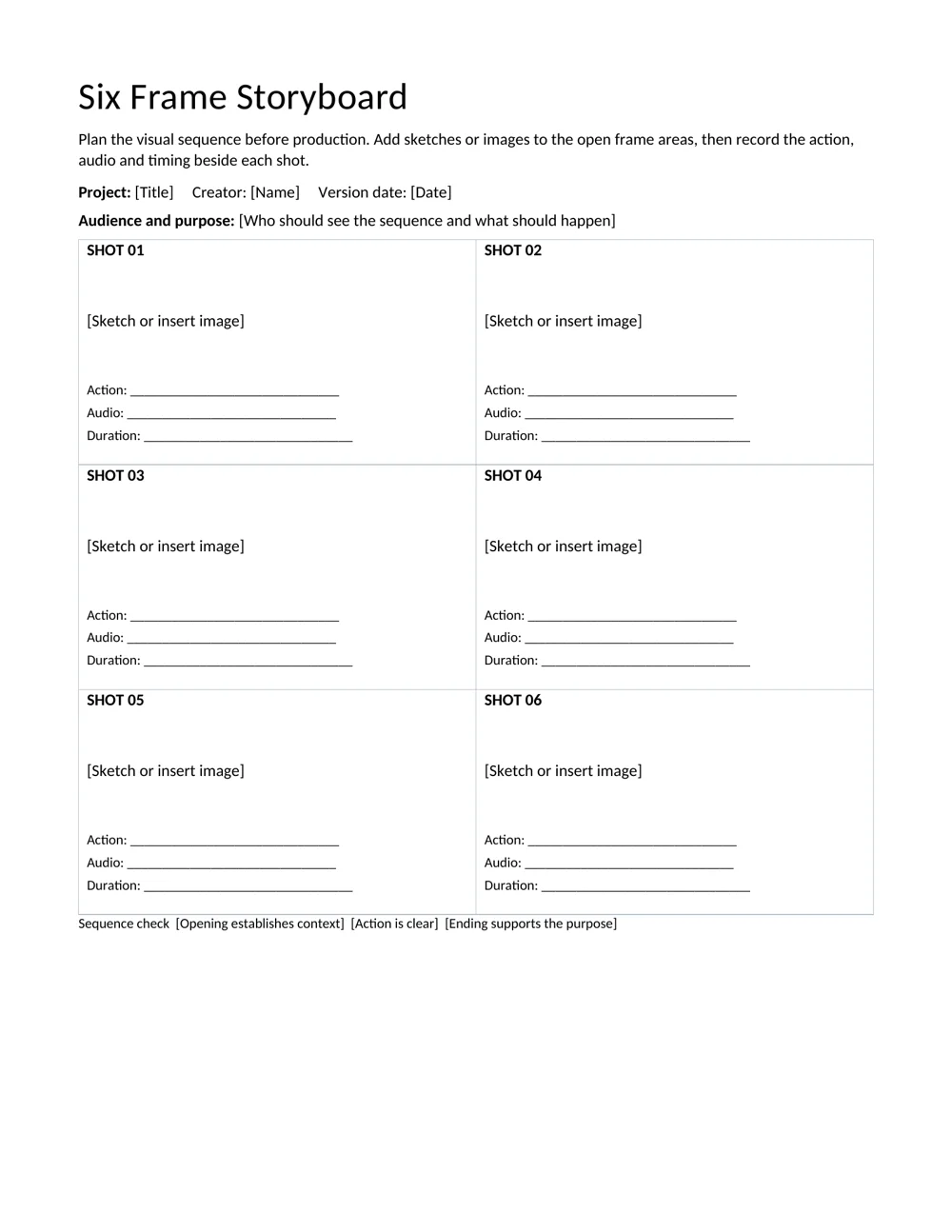
The six-frame storyboard gives a compact view of a short sequence. Each frame includes action, audio and duration prompts. Use it to compare shots, plan a quick demonstration or identify a missing transition.
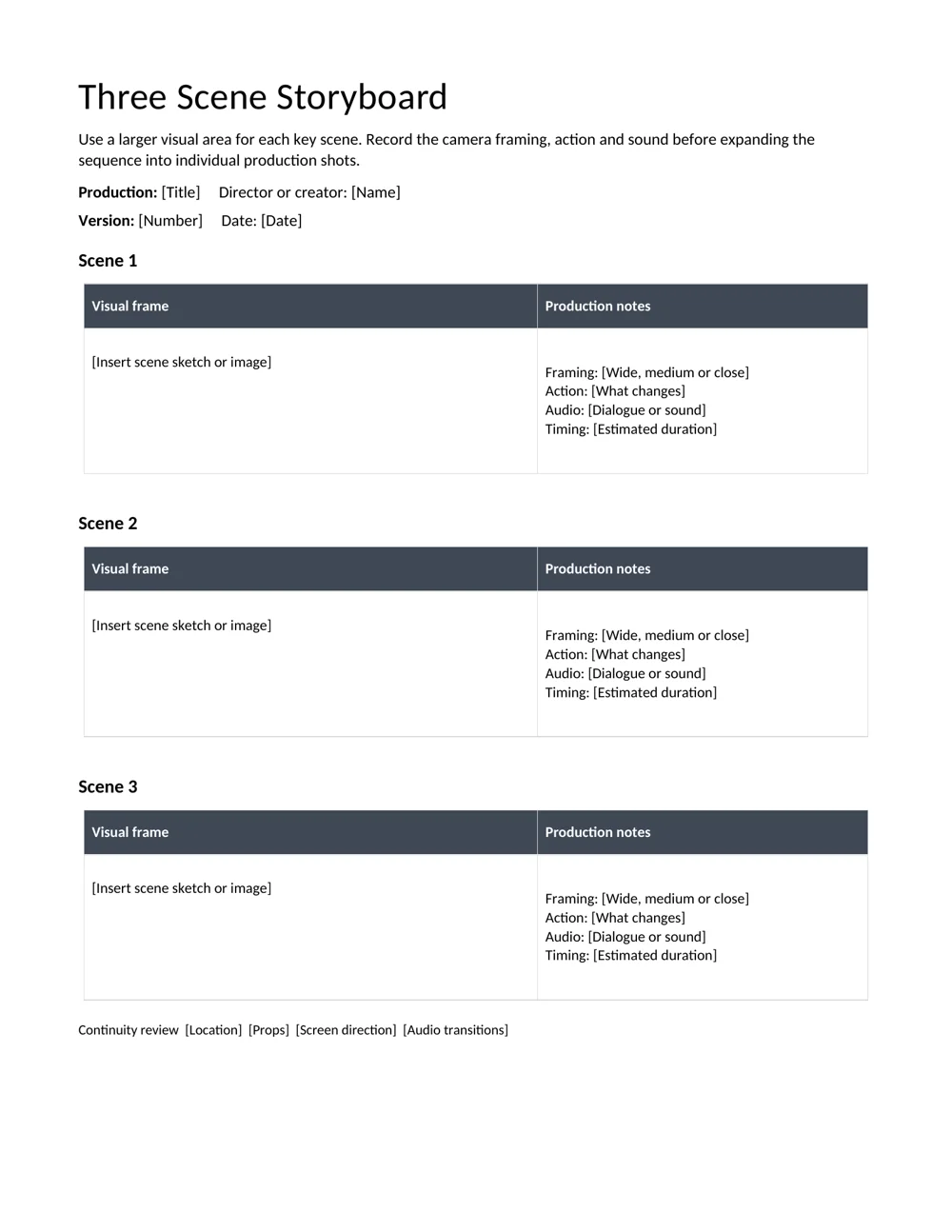
The three-scene storyboard gives each scene a larger visual area and a separate notes column. It suits an early concept, a presentation sequence or a scene that needs more explanation before being broken into individual shots.
A scene and a shot are different planning units. A scene may contain several shots. Start with the broader format when the narrative is still changing, then use a shot-based sheet when the production team needs specific framing and timing.
Start with the purpose and audience
Write one sentence explaining what the viewer should understand or do after the sequence. Then identify the essential beginning, development and ending. A project outline can help define the scope before you start drawing frames.
Keep each frame focused on a visible action or change. “Explain the process” is not a visual instruction. “Close view of the hand selecting the labeled option” tells the creator what needs to appear on screen.
Use simple shapes, arrows and labels when they communicate the idea. If a movement is important, describe its direction. If a detail must be readable, note the intended close view rather than relying on a tiny sketch.
Fill in a storyboard step by step
- Number the sequence. Use stable shot or scene references so comments can point to the same moment.
- Add a sketch or image. Show the subject, rough composition and important visual elements.
- Describe the action. State what happens in the frame and what changes before the next one.
- Record the audio. Add dialogue, narration, sound effects or a note that the moment is silent.
- Estimate duration. Use the estimate to check the overall pace, then revise it after a read-through or test recording.
- Review transitions. Check whether the viewer can follow the location, action and cause-and-effect between frames.
When the sequence is approved, use an action plan to assign production tasks, assets and review dates. Keep the creative sequence separate from the list of people preparing it.
Worked example: a short product demonstration
A six-shot demonstration might begin with a wide view showing the task and its context. The second shot shows the item needed. The third moves closer to the first action. The fourth highlights the check that prevents a common mistake. The fifth shows the completed result, and the sixth gives a concise next step.
For the close view, the action note could say: “Hand aligns the two marked edges before closing the cover.” The audio note might say: “Narration: align the edges before pressing down.” A three-second estimate is a starting point to test, not a guarantee that the action will be clear at that speed.
Read the sequence aloud while moving through the frames. If the narration explains a step that never appears visually, add or revise a shot. If two frames repeat the same information, combine them or use the space for a missing detail.
Check continuity, timing and production needs
Look for changes in props, subject position, screen direction and location that could confuse the viewer. Record intentional changes in the notes. Make sure important visual information is not present only in narration.
Add the estimated durations to see the planned running time. Leave room for pauses, title cards or transitions if the production uses them. A test with rough images and spoken narration can reveal pacing problems before filming begins.
Use a weekly planner to arrange filming, editing and feedback around available people and equipment. On the storyboard itself, keep version and date fields current. Distribute the revised version when a change affects later shots.
Before exporting a shareable copy, remove unused prompts, check the order and confirm that every essential scene has enough information for another person to understand the intended result.
Separate story order from production order
The storyboard shows the order the audience will see. The production team may film in a different order to make practical use of a location, person or piece of equipment. Keep the shot numbers stable so the filming plan can refer back to the intended sequence even when shots are captured out of order.
For the product demonstration, all close views of the hands might be filmed together. That does not mean they should appear consecutively in the final sequence. The frame references let the editor place each view in the correct position and identify where a missing shot belongs.
Add a short note when a visual depends on another shot. A completed item in one frame should match the item being assembled in the preceding frame. If the production needs a second example at a different stage of completion, note that requirement before filming rather than discovering it during editing.
Once the sequence is clear, create a separate shot or asset list if the project needs one. That list can include location, participants, props and file references. Keep the storyboard readable as a communication tool, while the production list handles the detail needed to prepare and capture the shots.
Check the sequence when sound or visuals are unavailable
Look through the sketches without reading the audio notes. Can a viewer follow the central action? If a critical step exists only in narration, decide whether the sequence needs a closer view, a pause or a visible instruction. This is especially helpful for demonstrations where the order of actions matters.
Then read the narration without relying on the sketches. Check whether it refers clearly to the action and whether phrases such as “over here” depend on an unexplained visual cue. Replace vague references with a useful description when doing so improves understanding.
For a screen-based tutorial, note which interface area must be visible and when the pointer or highlight should move. A wide screenshot may show the whole application but make the important control too small. Use the storyboard to identify where a closer view or a separate step is needed.
Consider captions, labels or supporting descriptions during planning rather than treating them as decoration added at the end. Record only the information that serves the audience and project. A crowded frame with several competing messages may need to be split into two simpler moments before production begins.
Give reviewers a focused way to respond
Tell reviewers what is open for feedback at the current stage. An early review might ask whether the sequence explains the idea and includes the necessary scenes. A later review may focus on the specific action, narration and timing. Mixing every possible production detail into the first review can slow useful decisions.
Ask comments to refer to shot or scene numbers. “Shot 04 needs to show the alignment check before the cover closes” is easier to act on than “make the middle clearer.” Record the decision and update the affected frames together so the next reviewer sees a consistent sequence.
When a change adds or removes a moment, check the surrounding audio and timing. A new explanatory shot can make an earlier narration line redundant, while removing a frame can leave a jump in the visual action. Review the whole passage instead of treating each frame as independent.
Keep a clear version reference on the approved storyboard and identify any later change that affects production. The approval is a useful checkpoint, but the plan may still need revision after a test recording. Preserve the relationship between the intended sequence and the actual assets so the editor can recognize what was captured and what remains missing.
Download the 2 editable templates
Choose a file below. The preview shows the supplied layout; use the download link to open the editable document. Save a clean master before creating your completed copy.
Six-frame storyboard
Plan six individual shots with sketches, action, audio and duration notes.
Three-scene storyboard
Use larger visual areas and production notes to develop the main scenes.
Frequently Asked Questions
Do I need drawing skills to use a storyboard?
No. Simple sketches, arrows and short notes are enough when they communicate composition and action clearly. The storyboard is a planning tool.
Which format should I start with?
Use three scenes for broad ideas and larger sketches. Use six frames when you are ready to plan a short shot sequence in more detail.
Can I insert photographs instead of sketches?
Yes. Insert images you have permission to use and size them within the visual areas. Keep the action and audio notes so the intended movement remains clear.
How do I estimate timing?
Read the narration and act through the movement at a realistic pace. Enter an initial duration, total the sequence and revise after a rough test.
Can I add more pages?
Yes. Duplicate the layout and continue the numbering. Keep project, version and date information consistent across the complete storyboard.

You must be logged in to post a comment.